
Objective
To learn how to use the Serial Monitor in the Arduino IDE for debugging, displaying data, and interacting with the ESP32 microcontroller. This experiment also introduces basic input/output interfacing using an LED and push button with serial feedback.
Introduction
The Serial Monitor is a built-in feature of the Arduino IDE that enables communication between a microcontroller and a computer. It is widely used for debugging, monitoring sensor data, and sending commands to the microcontroller. In this laboratory, you will explore how serial communication works and how it can be integrated with simple input/output components such as LEDs and push buttons.
Laboratory Equipment and Components
- ESP32 Development Board
- USB Cable
- Breadboard
- 1 × LED
- 1 × 220Ω Resistor
- 1 × Push Button
- Jumper Wires
- Computer with Arduino IDE
Theory
Serial communication transmits data bit by bit over a communication channel. In Arduino/ESP32 programming, serial communication is initialized using:
Serial.begin(9600);
Data can be sent using:
Serial.print("Text");
Serial.println("Text");
The Serial Monitor displays this data and can also send input back to the ESP32. This makes it a powerful debugging and interaction tool.
Circuit Diagram
The circuit consists of an LED connected to a GPIO pin and a push button connected to another GPIO pin with proper pull-down configuration.
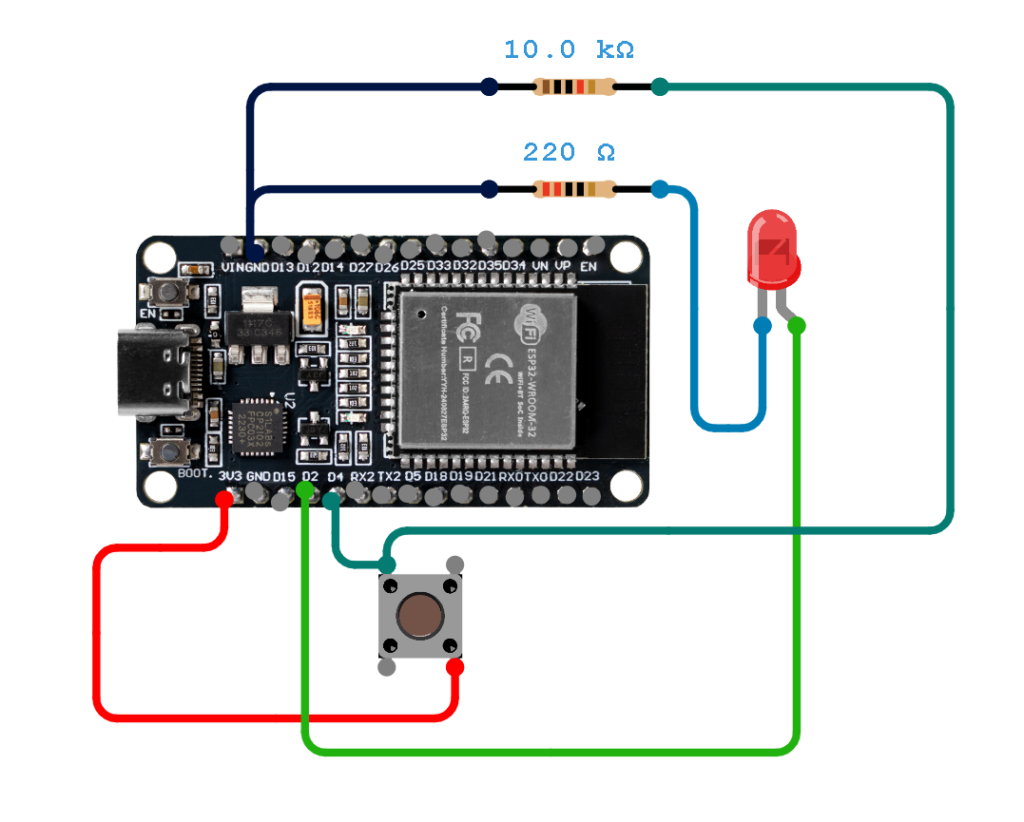
Connection Table
| Component | ESP32 Pin | Description |
|---|---|---|
| LED Anode (+) | GPIO 2 | Output pin to control LED |
| LED Cathode (-) | GND (via 220Ω resistor) | Current limiting connection |
| Push Button (One side) | GPIO 4 | Input pin for button reading |
| Push Button (Other side) | 3.3V | Provides HIGH signal when pressed |
| GPIO 4 (Pulldown) | GND | Use internal or external pull-down resistor |
| Push Button (Other side) | GND (via 10KΩ resistor) | Pull-down Resistor |
LED Circuit
The LED is connected to GPIO 2 with a current-limiting resistor. It will turn ON or OFF based on the push button state.
Push Button Circuit
The push button is connected to GPIO 4. When pressed, it sends a HIGH signal; otherwise, it remains LOW due to the pull-down configuration.
Experimental Procedure
Step 1: Assemble the Circuit
Build the circuit according to the connection table provided above.
Step 2: Connect the ESP32
Connect the ESP32 to your computer using a USB cable.
Step 3: Open Arduino IDE
Launch the Arduino IDE.
Step 4: Select the Board
Go to Tools → Board → ESP32 Dev Module and select the correct COM port.
Step 5: Write the Program
const int ledPin = 2;
const int buttonPin = 4;

void setup() {
  pinMode(ledPin, OUTPUT);
  pinMode(buttonPin, INPUT);
  Serial.begin(9600);
}

void loop() {
  int buttonState = digitalRead(buttonPin);

  if (buttonState == HIGH) {
    digitalWrite(ledPin, HIGH);
    Serial.println("Button Pressed - LED ON");
  } else {
    digitalWrite(ledPin, LOW);
    Serial.println("Button Released - LED OFF");
  }

  delay(500);
}
Step 6: Upload the Program
Upload the code to the ESP32 and wait for completion.
Expected Output
Open the Serial Monitor and set the baud rate to 9600. You should observe:
To open the serial monitor just press the key combination: Ctrl + Shitf + M
- When the button is pressed: “Button Pressed – LED ON”
- When the button is released: “Button Released – LED OFF”
The LED should turn ON and OFF accordingly.
Discussion
This experiment demonstrates how serial communication can be integrated with hardware input and output. The Serial Monitor provides real-time feedback, making it easier to debug and understand system behavior. By combining button input and LED output, the system becomes interactive and more practical.
Such setups are commonly used in embedded systems for monitoring sensor values, controlling devices, and testing logic before deploying full applications.
Conclusion
In this lab, you successfully used the Serial Monitor to observe and control an ESP32-based system. You learned how to interface input and output devices and how to use serial communication for debugging and interaction. These skills are essential for developing more complex embedded systems.
Guide Questions
- What is the role of the Serial Monitor in this experiment?
- Why is a resistor needed in the LED circuit?
- What would happen if the baud rate is mismatched?
- How does the push button affect the LED behavior?
- How can serial communication be used for debugging more complex systems?
Arduino Random Number Primer
The random() function in Arduino is used to generate pseudo-random numbers, which are useful for simulating sensor readings, games, or unpredictable behavior in your projects.
1. Basic Usage
Use random(min, max) to generate a number between min (inclusive) and max (exclusive).
void setup() {
  Serial.begin(9600);
}

void loop() {
  long randNumber = random(0, 101); // 0 to 100
  Serial.println(randNumber);
  delay(1000); // Wait 1 second
}
Explanation:
random(0, 101)→ generates integers from 0 to 100.Serial.println()prints the number to the Serial Monitor.delay(1000)adds a 1-second pause between numbers.
2. Single Parameter Version
If you provide only one parameter, it generates numbers from 0 up to (but not including) that value:
long randNumber = random(50); // 0 to 49
3. Improving Randomness
Arduino’s random numbers are pseudo-random and repeat the same sequence unless you change the seed:
void setup() {
  Serial.begin(9600);
  randomSeed(analogRead(A0)); // Use an unconnected analog pin for variability
}

void loop() {
  long randNumber = random(0, 101);
  Serial.println(randNumber);
  delay(1000);
}Tip: randomSeed() should be called once in setup() to generate a different sequence each time the board restarts.
4. Practical Example: Simulated Sensor
Use random() to simulate sensor values and warnings:
void setup() {
  Serial.begin(9600);
  randomSeed(analogRead(A0));
}

void loop() {
  int sensorValue = random(0, 101);
  Serial.print("Sensor reading: ");
  Serial.println(sensorValue);

  if (sensorValue > 80) {
    Serial.println("Warning: High value!");
  }

  delay(1000);
}
This example demonstrates:
- Generating random numbers
- Using
ifstatements - Printing output to the Serial Monitor
5. Summary
random(min, max)→ generates integers frommintomax-1random(max)→ generates integers from 0 tomax-1randomSeed(seed)→ ensures a different sequence each time- Use
Serial.print()andSerial.println()to display numbers
After Guide Assessment: Arduino IDE Serial Monitor (Hands-On)
Test your understanding of the Arduino Serial Monitor by completing the following exercises. Each task requires using Serial.print(), Serial.println(), Serial.read(), and/or Serial.begin().
Exercise 1: Basic Output
Write a sketch that:
- Initializes serial communication at 9600 baud.
- Prints your name to the Serial Monitor once every 2 seconds.
Challenge: Use Serial.print() and Serial.println() together to print your first and last name on the same line, then move to a new line for the next output.
Exercise 2: Counting Numbers
Write a sketch that:
- Prints numbers from 1 to 20 in the Serial Monitor, one per line.
- Waits 500 milliseconds between each number.
Challenge: Use a for loop and Serial.print() to print numbers on the same line, separated by commas, and then use Serial.println() after the loop to go to the next line.
Exercise 3: User Input
Write a sketch that:
- Prompts the user in the Serial Monitor to enter a number.
- Reads the number using
Serial.read()orSerial.parseInt(). - Prints a message like “You entered: [number]” back to the Serial Monitor.
Challenge: Handle invalid inputs (like letters) gracefully.
Exercise 4: Interactive Sensor Simulation
Simulate a sensor by writing a sketch that:
- Generates a random number between 0 and 100 every second.
- Prints “Sensor value: [number]” to the Serial Monitor.
- If the value is above 80, print “Warning: High value!”
Challenge: Try using both if statements and serial output formatting.
Exercise 5: Debugging Practice
The following code has errors that prevent it from printing correctly to the Serial Monitor:
void setup() {
  Serial.begin(9600);
}

void loop() {
  Serial.print("Count: ");
  for(int i=0; i<=5; i++);
    Serial.println(i);
  delay(1000);
}Tasks:
- Identify and fix the errors so that the Serial Monitor correctly prints numbers 0 to 5 each second.
- Explain why the original code did not work as intended.